Text Editing in Linux: Using Nano for Beginners

I ran into a problem the first time I tried editing a file in my Ubuntu VM, and I totally got stuck in the Linux terminal because I had no clue how to use text editors. I’ll tell you about that mess and how I learned to use Nano, which is a super easy text editor for beginners like me. Let’s jump in!
My Problem: I Got Stuck in the Terminal
When I first tried messing around with my Ubuntu VM, I wanted to make a file called mynotes.txt to jot down some Linux commands I was learning. I made the file with touch mynotes.txt, but then I didn’t know how to put stuff in it. I tried vim mynotes.txt because I saw it somewhere online, but I couldn’t even type! I was pressing all sorts of keys, and I couldn’t even close the thing. I had to shut the terminal to get out, and I was so annoyed. I knew I needed something easier, and that’s when I found Nano.
What’s a Text Editor in Linux?
A text editor is a tool you use to write or change stuff in a file. In Linux, you don’t always get a simple app like Notepad, so you use the terminal. There are lots of text editors like Vim, Emacs, and Nano. Vim and Emacs are kinda hard because you gotta learn a bunch of commands. But Nano is so much easier, and you can start typing right away.
How to Use Nano to Edit Files: Step by Step
I’m gonna show you how to use Nano on your Ubuntu VM. We’ll install it, open a file, write stuff, save it, and get out. It’s really simple!
Step 1: Install Nano
Most Linux systems, like Ubuntu, already have Nano installed, so you probably don’t need to do this. But just to be sure, open your terminal and type:
sudo apt install nano
This will install Nano if it’s not there. It only takes a few seconds.
Step 2: Open a File with Nano
Now let’s open a file. I’ll use mynotes.txt that I made before. In the terminal, type:
nano mynotes.txt
This opens Nano, and you’ll see a blank screen with some options at the bottom. If there’s already stuff in your file, you’ll see it.
Step 3: Write or Edit Stuff
When Nano opens, you can just start typing. It’s like writing in any app. I wrote down some commands I wanted to remember:
Stuff I Learned:
ls to see files
cd to change folders
pwd to see where I am
You can move around with the arrow keys to fix or add more stuff.
Step 4: Save Your File
When you’re done, you gotta save it. At the bottom of Nano, it says ^O Write Out. The ^ means the Ctrl key. So press Ctrl + O, then hit Enter to save. You’ll see a message saying it’s saved.
Step 5: Get Out of Nano
To close Nano, look at the bottom—it says ^X Exit. Press Ctrl + X, and you’re back in the terminal. Done!
Step 6: Check Your File
To see if your stuff saved, type:
cat mynotes.txt
It’ll show what you wrote. I saw my list of commands, and I was so stoked it worked!
Why Nano is Awesome
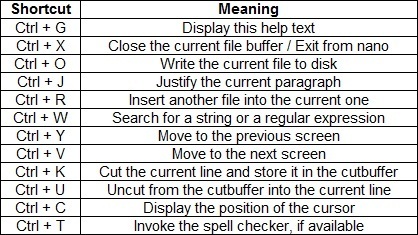
I think Nano is the best for beginners like me. You don’t gotta learn a ton of hard commands like with Vim. The options at the bottom tell you what to do, like Ctrl + O to save and Ctrl + X to close. Now I use Nano all the time to make notes or write tiny scripts, and it’s so easy.
Cheatsheet:
What’s Next?
Figuring out Nano made me way more comfy with Linux. Now I can make and edit files without freaking out in the terminal! If you wanna learn more about text editors, I found this awesome YouTube channel called “Learn Linux TV” that has a video on Nano and Vim. They break it down in a simple way, and it helped me a lot.
I’m gonna keep writing about Linux stuff for beginners, like how to manage files or install apps. Let me know in the comments if you tried Nano or if you use another text editor. Catch you in the next one!


